
I paid for InVideo AI because I actually needed it. Not to write a review. I wanted to turn NenaWow content into short videos for YouTube and TikTok, including clips for Cup of AI. I supplied my own script, and I used the tool the way a real creator would use it.
By the end of testing, my account showed 81.8 of 75 credits used. That is 100 percent of my monthly AI allowance. And I did not walk away with a single finished Short I wanted to publish. This review is what happened between those two facts.
Table of Contents
Nena’s Quick Verdict: Is InVideo AI Worth It?
For me, no. I would not renew InVideo AI Plus based on this test.
That is not because the tool is broken or fake. The interface is polished. The media library works well. A few of the generated clips actually looked good. But I bought this specifically to turn a script into a finished Short, and I ran out of credits before that happened. For my workflow, that is a real problem.
To be fair, some of what InVideo builds under the hood is genuinely well designed. The gap is not in the interface. The gap is between generating footage and getting something you can actually publish.
What Is InVideo AI?
InVideo AI is an AI video generation platform built around agents and models that turn prompts, scripts, or product ideas into short video sequences. You pick an agent, give it a goal or a script, and it produces style frames, storyboards, and generated clips through models like Seedance 2.0.
It sits somewhere between a text-to-video generator and a full editing suite. The newer agent-based workflow is the current focus. The older manual editor still exists behind a settings toggle.
InVideo AI vs the Older InVideo Editor
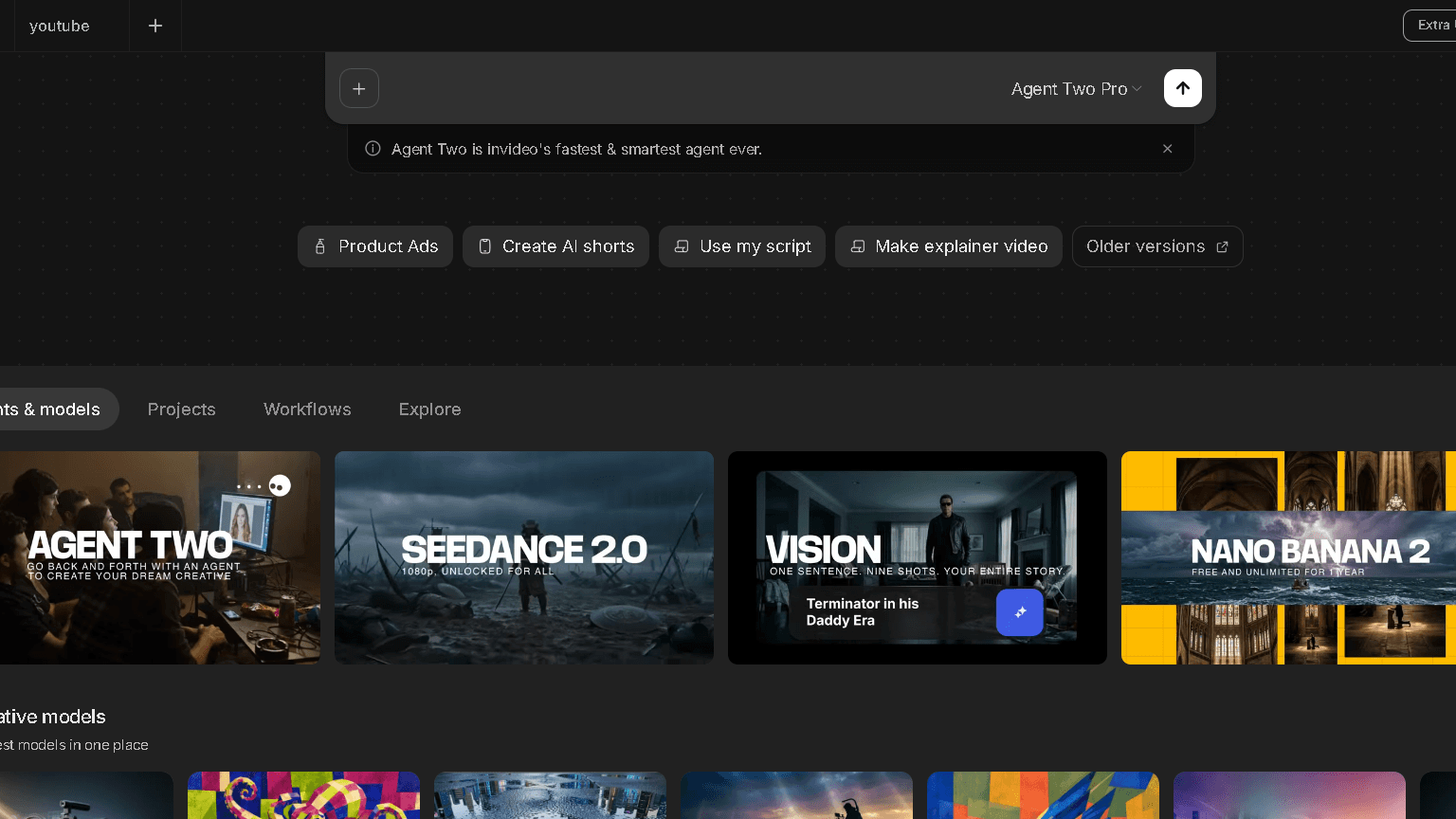
My workspace had an option called Show Older Versions, described as access to older InVideo versions to create one-shot videos. That tells you something. In my workspace, InVideo’s AI agents were front and center, while access to older InVideo versions was available through the settings. If you came here for the classic drag-and-drop InVideo, know that the current front door is agent-driven, not timeline-driven.
How I Tested InVideo AI for This Review
I did not create a throwaway account to poke around for twenty minutes. I paid for the Plus plan with a real goal in mind, and I used my own project data throughout.
My Goal: Create a Short-Form Video for YouTube and TikTok
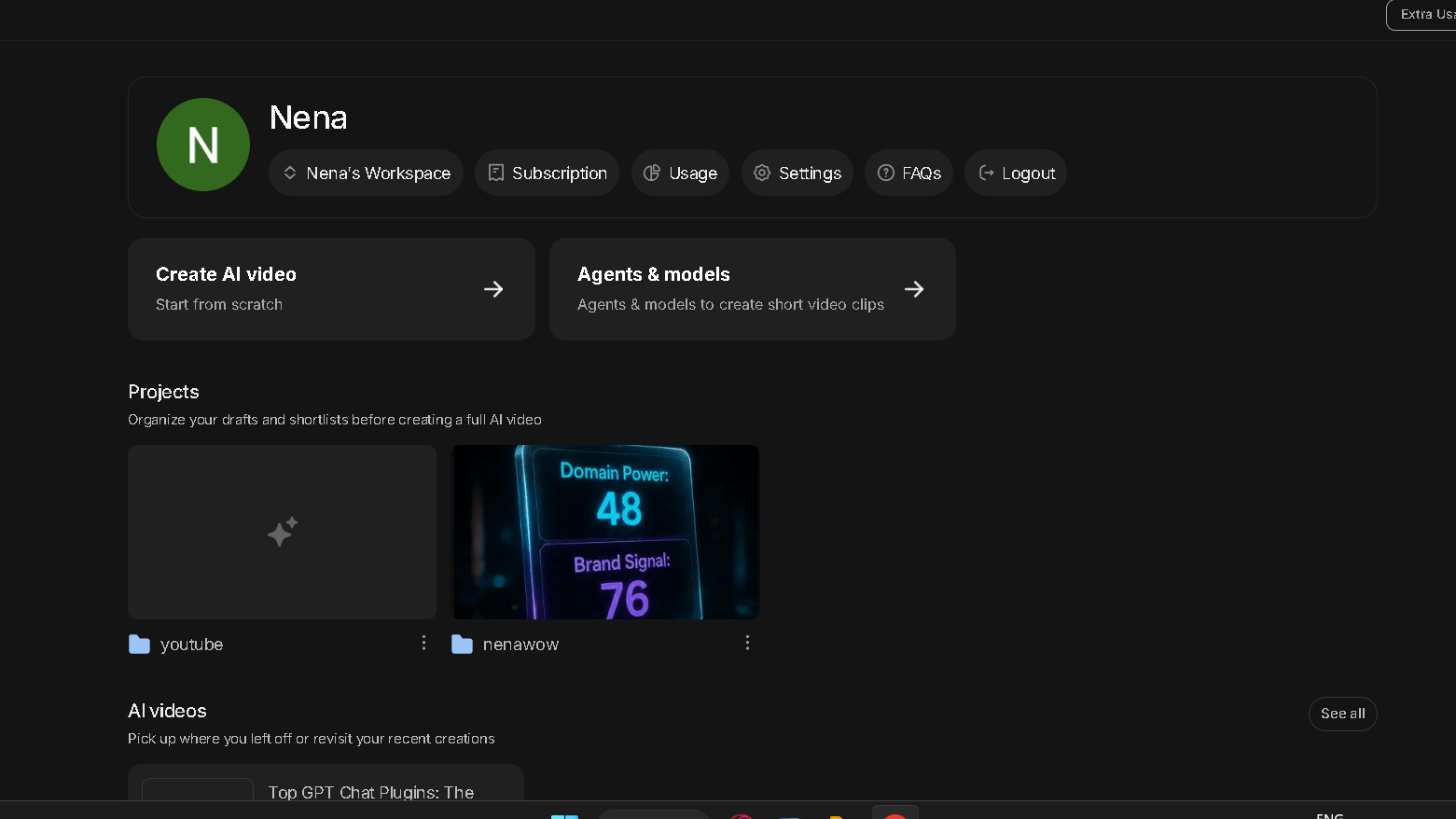
My plan was straightforward. I had a topic already tested and written up on NenaWow: an AI visibility test involving Toolify, with a Domain Power score of 48 and a Brand Signal near 76. All I wanted was a short, fast-paced video version of that story for TikTok and YouTube Shorts. I set up a NenaWow project folder and a YouTube project folder inside InVideo to keep things organized before I even started generating.
The Script I Gave InVideo AI
I did not ask InVideo to invent an idea. I gave it a finished script. The instruction was simple: create a video for TikTok using exactly this script. The script covered the Domain Power and Brand Signal numbers, a comparison against three competitors, the finding that rankings and AI visibility are not the same thing, my citation count rising to 365 over three months, and a closing call to action pointing to NenaWow.com.
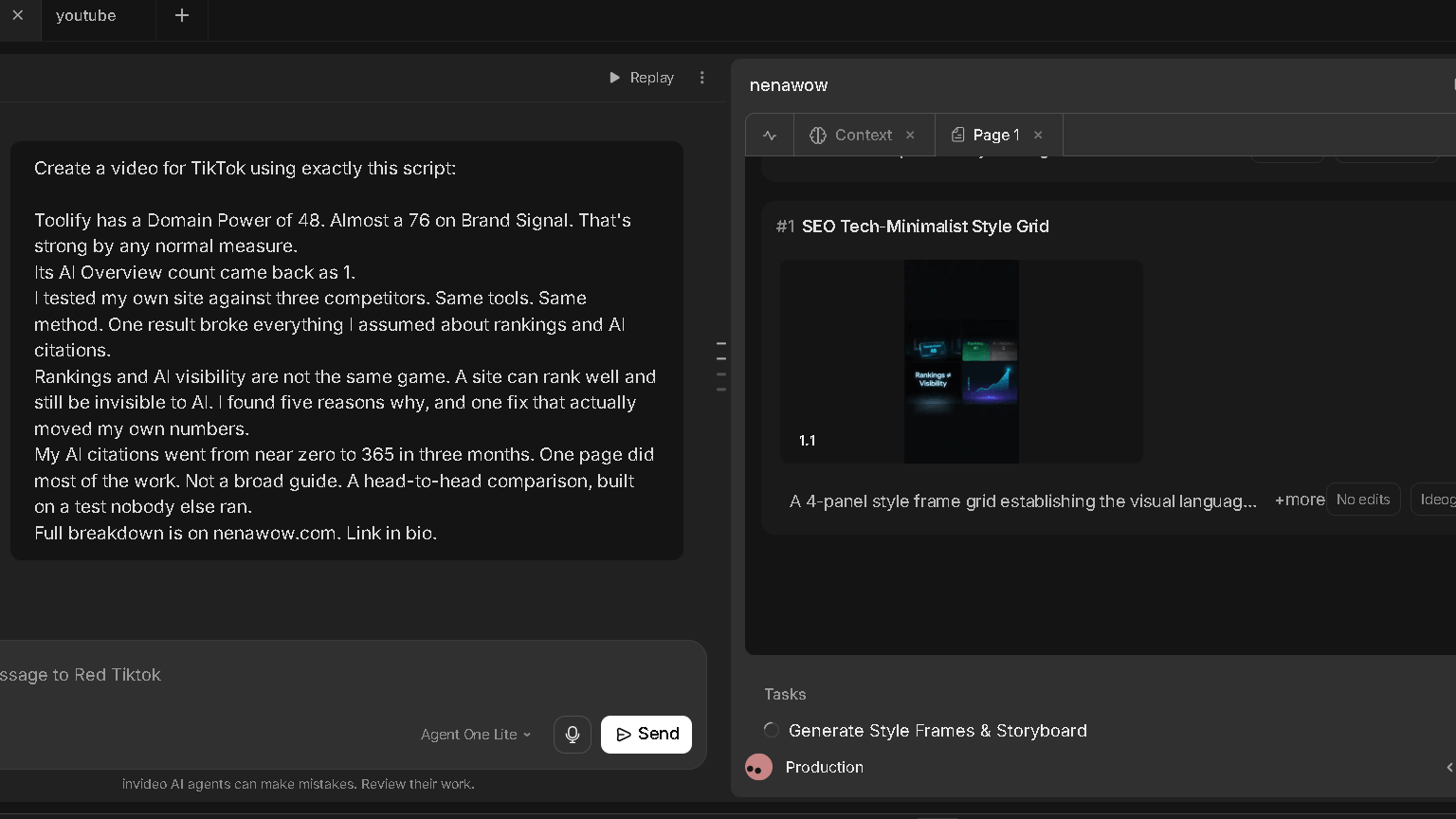
That matters. InVideo was not being asked to come up with content. It was being asked to turn existing, finished content into video. That is a lower bar than writing from scratch, and it is exactly the job most creators actually need done.
My InVideo AI Test at a Glance
Here is the full test in one place, before I walk through what each number actually meant.
| My InVideo AI Test | Result |
|---|---|
| Plan tested | Plus |
| AI credits included | 75 |
| Credits recorded as used | 81.8 / 75 |
| Main task | Turn my finished script into a Short |
| Generated files preserved | 5 |
| Approx. combined clip duration | 36 seconds |
| iStock used | 0 / 100 |
| Storage used | 0 / 20 GB |
| Finished Shorts I published | 0 |
| Would I renew? | No |
My InVideo AI Test Results: What Happened to My 75 Credits?
This is the part of the review that matters most, so I want to walk through it in order.
InVideo Generated Short Sequences Instead of the Finished Video I Expected
I ran my script through Agent One Lite. The tool moved through its stages: generate style frames and storyboard, then production. What came out the other side was a vertical style grid, described in the interface as an SEO Tech-Minimalist Style Grid, along with a set of individual generated clips.
Some of those clips were genuinely decent on their own. A glowing cyan line animation. A circular cyan pulse. A glowing number one. A purple and cyan particle sequence. Five files total, running roughly 10, 6, 6, 8, and 6 seconds, for about 36 seconds combined, and two of those clips looked close to identical. That is not 36 seconds of unique usable footage. It is closer to 30.
Here is the issue. Attractive individual clips are not the same as a finished Short. I needed one continuous video I could upload and publish. What I got was a set of pieces I would have had to stitch, trim, and sequence myself, on top of the credits I had already spent getting there.
I Used 100% of My Monthly AI Credits
My Plus plan includes 75 AI credits a month. By the time I finished testing, my usage screen showed 81.8 of 75 credits used, listed as 100 percent of my monthly allowance. My iStock usage sat at 0 of 100. My storage sat at 0.0 of 20 GB. The credits were the only resource I came close to touching, and I burned through all of them.
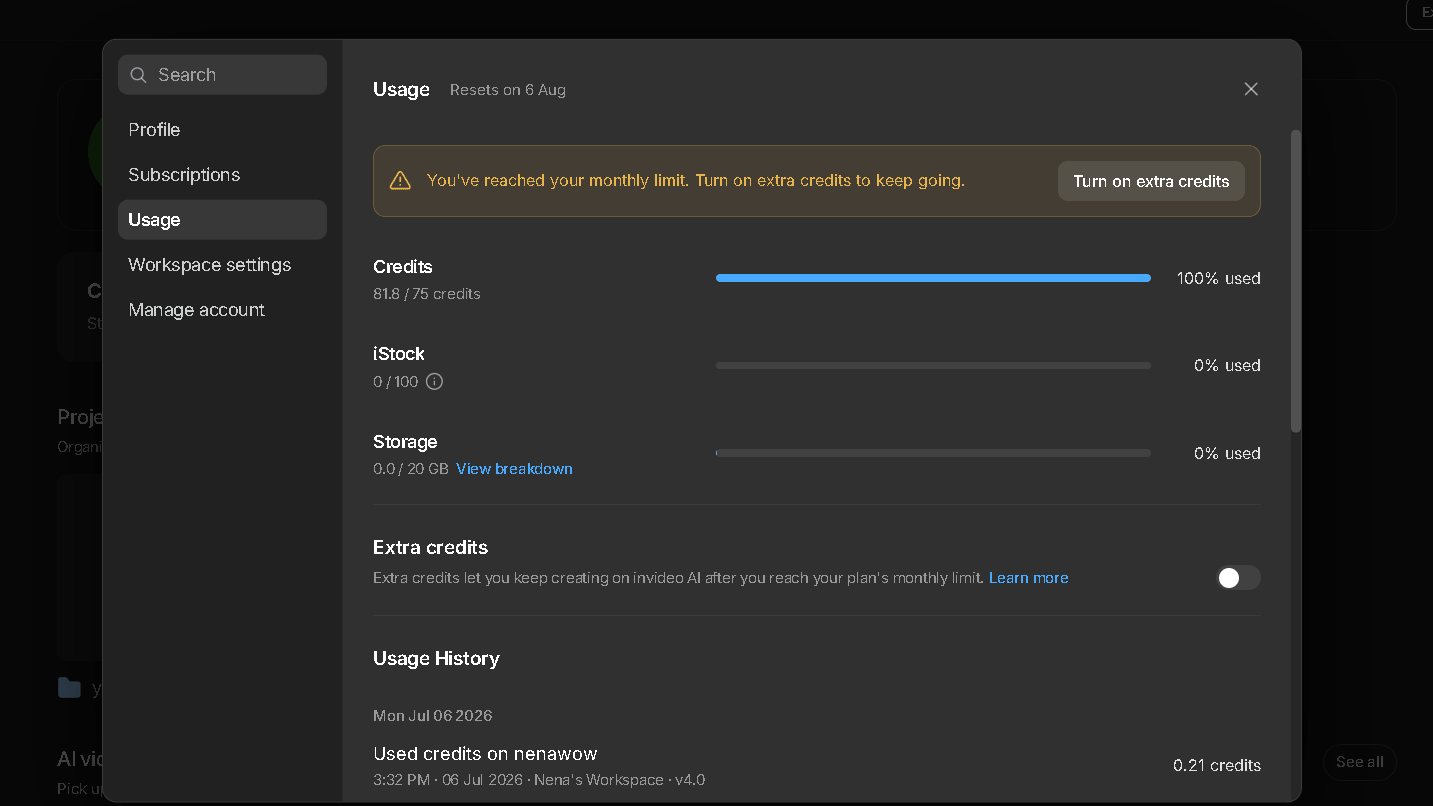
I want to be careful here, because this number is easy to misread. I am not claiming one video cost 81.8 credits, or that a single prompt costs 75 credits. I do not know the exact per-generation cost, and InVideo does not spell it out clearly. What I do know is that my account’s usage history, across the actions I took during this test, added up to more than my full monthly allowance. That is the honest version of the finding, and it is still a meaningful one.
What Happened When My InVideo Credits Ran Out?
Once the allowance was gone, I tried one more request: a 15 second fast-paced ad for YouTube about my Free AI Visibility Tool. Nothing complicated. Just 15 seconds.
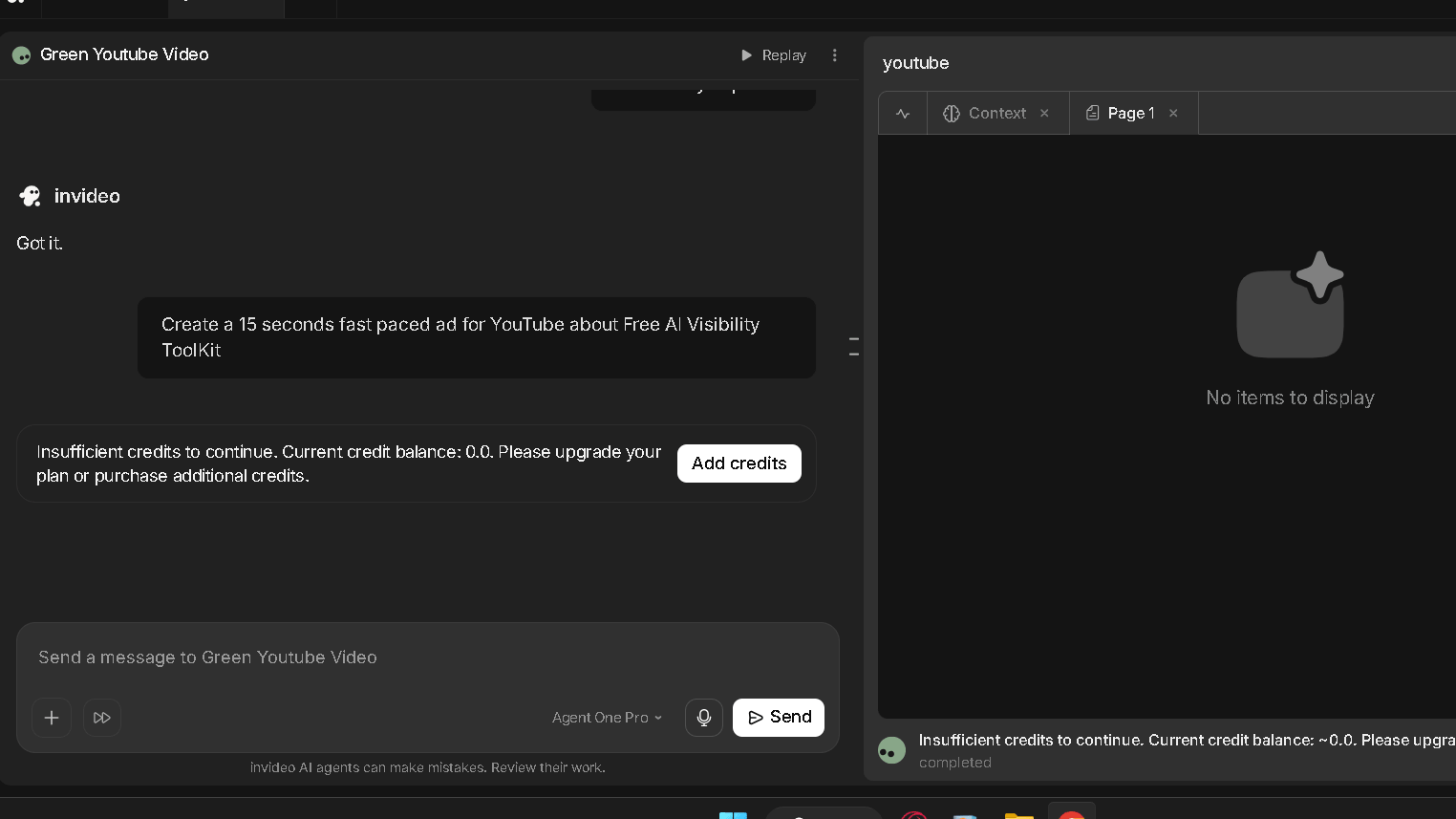
InVideo’s Agent One Pro returned a message instead of a video: insufficient credits to continue, current credit balance 0.0, upgrade your plan or purchase additional credits. The output panel showed no items to display. There was an Add Credits button waiting underneath.
That is a hard stop. Not a slowdown, not a lower-quality fallback. A full stop until you pay more.
InVideo AI Video Quality: Are the Results Actually Good?
I want to separate two questions that InVideo tends to blur together: does it generate decent-looking clips, and does it get you to a finished video. The answers are different.
Visual Quality
On their own, several of the generated clips looked clean. Good color, smooth motion, nothing that screamed cheap AI output. If you just wanted a short atmospheric background clip, some of what I got would work fine.
Prompt Following
Given my finished script, the tool pulled the right general direction, tech-forward, SEO-themed visuals, but it did not turn the script into a coherent narrated sequence matching each line. It produced style frames and clips that felt adjacent to the script rather than built directly from it.
Scene and Sequence Quality
Individual scenes held up. The problem showed up between scenes. There was no clear throughline connecting clip one to clip five into something you would recognize as a single video with a beginning, middle, and end.
How Much Editing Is Still Required?
Quite a bit. I didn’t get a publish-ready file from my test. I got raw material that still needed assembly, trimming, and sequencing, work that costs you time even after it already cost you credits. Individual clips: sometimes impressive. Finished-video workflow in my test: disappointing.
InVideo AI for YouTube Shorts: My Experience
This is the section that matters most, because YouTube Shorts and TikTok were my actual reason for paying.
Can it make vertical video? Yes, the style grid output was vertical and formatted for Shorts and TikTok. Is the workflow easy to start? Yes, the agent selection and script input were both simple. Does it follow a supplied script? Loosely, not tightly. Are the generated clips usable on their own? Some of them, for background use. How much intervention did I need? A lot, more than I expected going in.
So is it worth it, if Shorts and TikTok content is your reason for signing up? Based on this test, my answer is no. Published Shorts produced during this test: zero.
InVideo AI Features I Actually Liked
I do not want this review to read as one-sided, because it was not a one-sided experience. There were parts of InVideo I liked using.
Agents and AI Models
My dashboard led with Agent Two Pro, described in the interface as InVideo’s fastest and smartest agent yet. Quick actions included Product Ads, Create AI Shorts, Use My Script, and Make Explainer Video. Under the hood sat a range of models, Agent Two, Seedance 2.0, Vision, and Nano Banana 2. That is a genuinely broad toolkit, and starting a project takes seconds.
Media Library
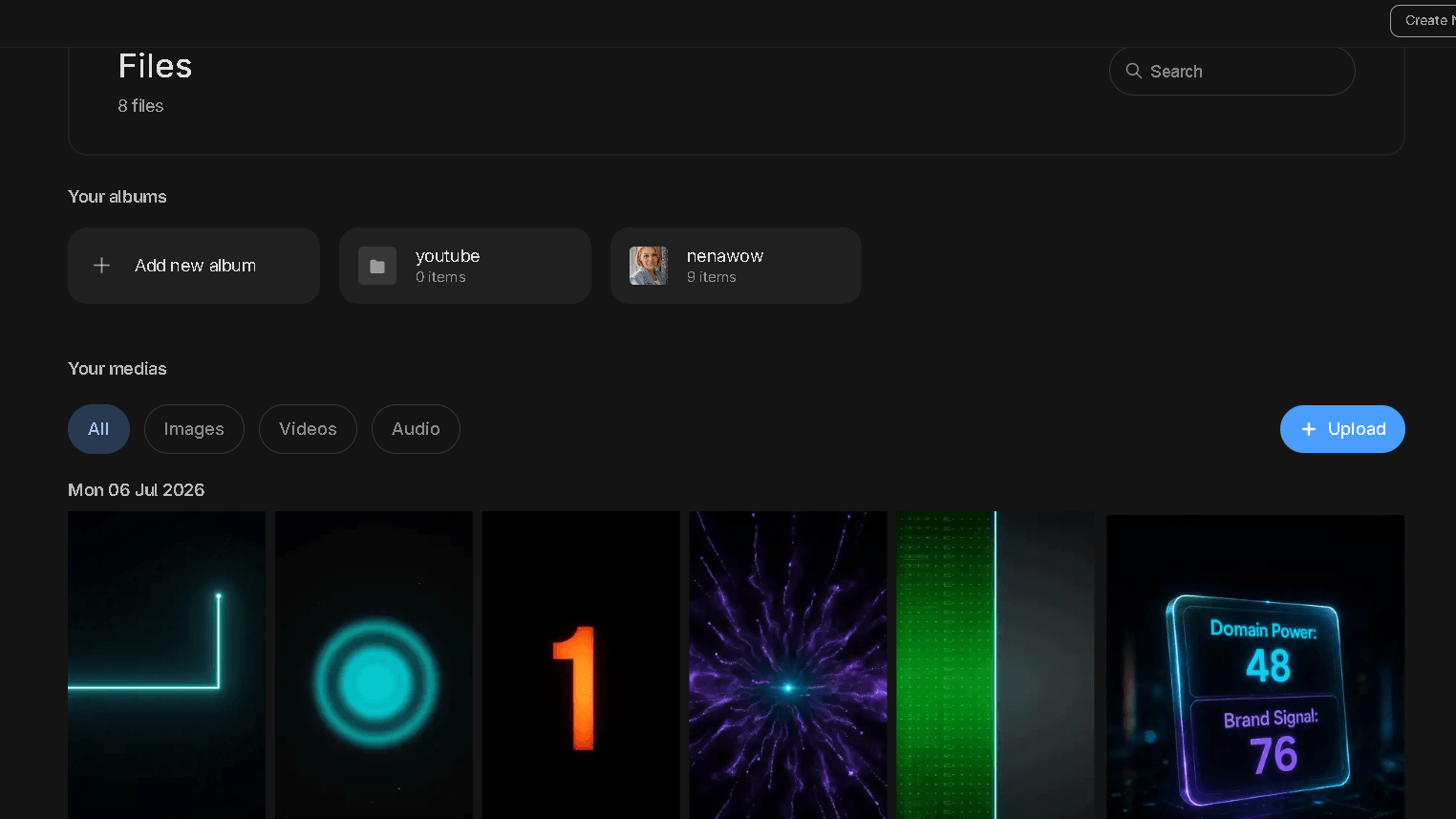
The media library separates images, videos, and audio, and lets you build albums. I had already created a youtube album and a nenawow album, with nine items sitting in the nenawow album from earlier work. For anyone managing branded assets across projects, that organization is useful. Media stays put, and finding it later is easy.
Explore Gallery and Video Styles
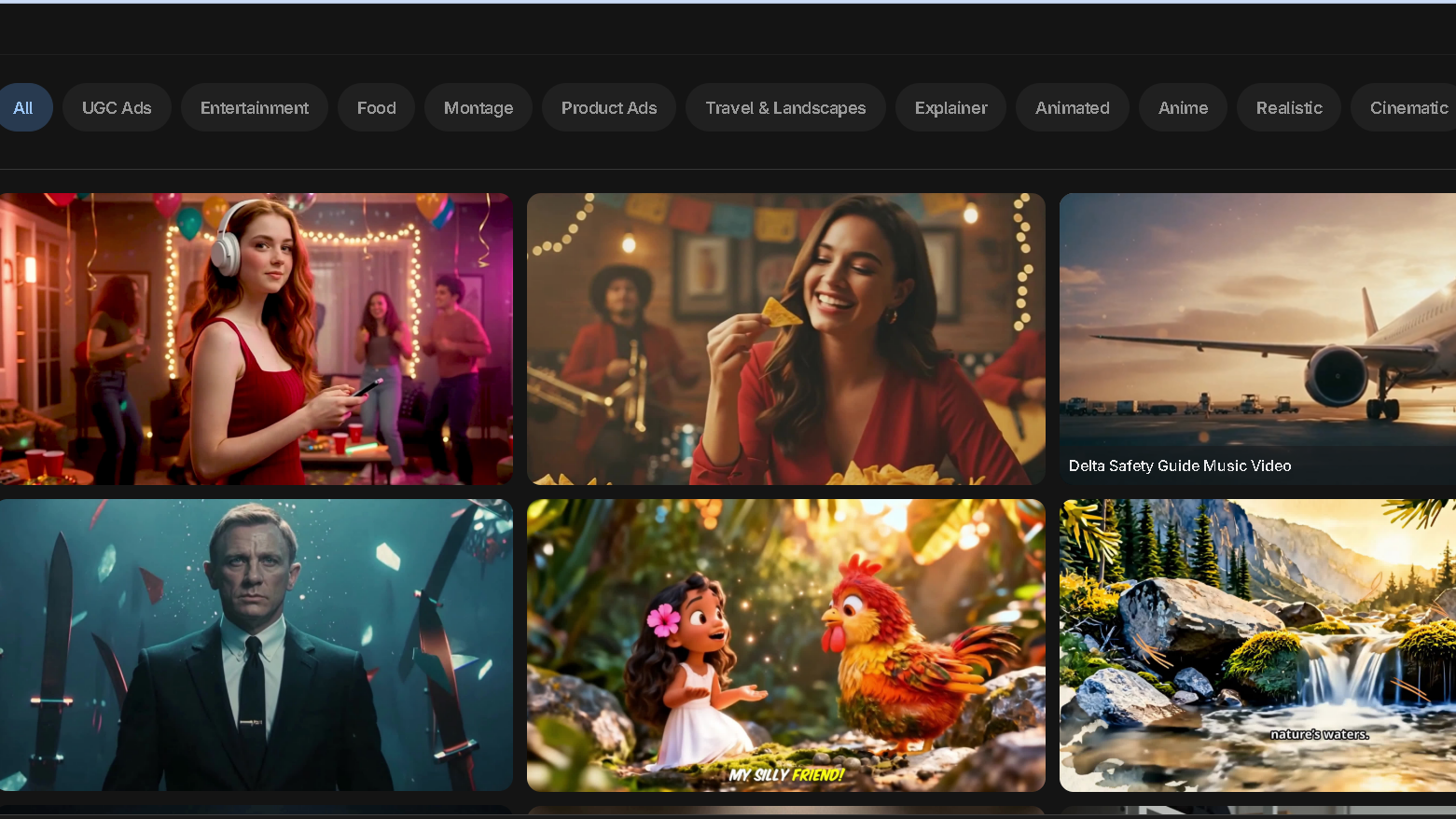
The Explore tab is genuinely fun to browse. Categories included UGC Ads, Product Ads, Explainer, Animated, Anime, Realistic, Cinematic, Travel and Landscapes, Food, and Music. The example videos inside look polished, arguably more polished than what I generated myself, which tells you the gallery is doing its job as a showcase rather than a promise.
Projects and Workspace Organization
My account had real project folders, YouTube and NenaWow, both holding actual work rather than test filler. Switching between projects was clean, and nothing about the workspace felt cluttered.
The interface and project organization were not my problem with InVideo.
InVideo AI Pricing: How Much Does It Cost in 2026?
I captured InVideo’s public pricing page on August 5, 2026, with annual billing selected.
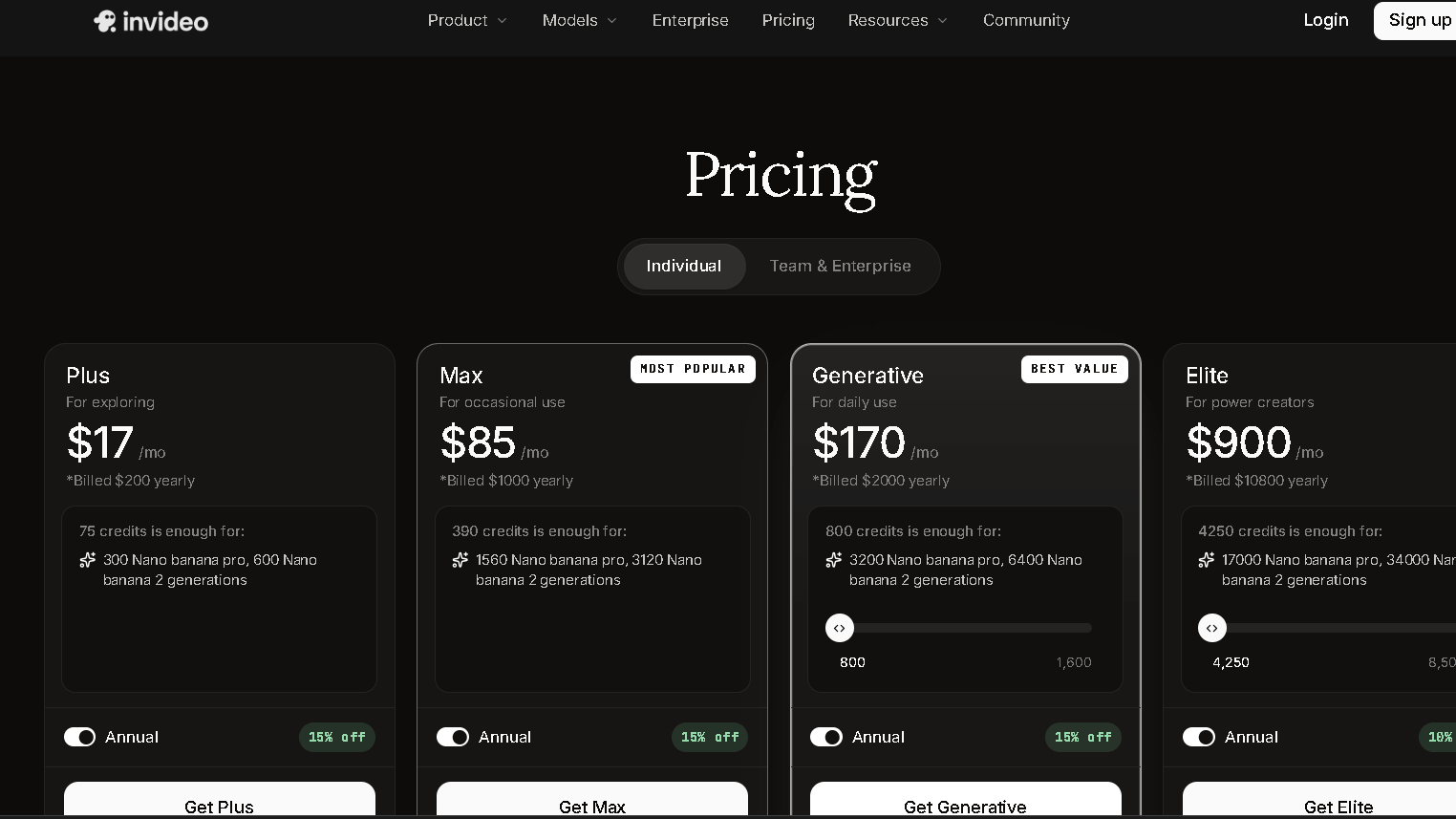
| Plan | Price shown | Annual charge | Credits |
|---|---|---|---|
| Plus | $17/month | $200/year | 75 |
| Max | $85/month | $1,000/year | 390 |
| Generative | $170/month | $2,000/year | 800 |
| Elite | $900/month | $10,800/year | 4,250 |
Those figures reflect the annual billing rate shown at the time of my test, not necessarily month-to-month pricing, so treat them as a snapshot rather than a fixed promise.
Is InVideo AI Plus Worth the Price?
Seventeen dollars a month sounded reasonable before I started generating. It stopped sounding reasonable once I saw 100 percent of my credits gone without a finished Short in hand. The price itself is not steep. The gap is what you get for it.
Are 75 InVideo AI Credits Enough?
For my workflow, no. In my test, 75 credits were not enough to get me from a finished script to a finished, publishable video. I do not want to universalize that. If your needs are lighter, shorter clips, fewer iterations, less back and forth, 75 might stretch further for you than it did for me. But treat 75 credits as a starting budget to test with, not a monthly production allowance you can count on.
InVideo AI Pros and Cons After My Hands-On Test
Based only on what I actually observed during this paid test.
| Pros | Cons |
|---|---|
| Polished, modern interface | Credits disappeared fast in my real workflow |
| Wide range of AI agents and models | Did not produce the finished Short I set out to make |
| Genuinely useful media library with album organization | Continuing past the monthly allowance meant buying more or upgrading |
| Clean project and workspace management | Generating components is not the same as a publishable finished video |
| Some individually attractive generated clips | For my specific use case, the value did not hold up |
| Large, inspiring Explore gallery |
That combination is harder to find in a review built on a real account than in one built on a demo login.
Who Should Use InVideo AI?
I only tested the Plus plan, so I am not going to guess how the higher tiers perform. Based on what I saw, InVideo may make more sense if you mainly want individual AI-generated clips to drop into your own editing process, or if you enjoy experimenting with different agents and models rather than expecting a finished product on the first pass.
My biggest hesitation is recommending Plus specifically to anyone expecting a script-to-finished-Short workflow. That expectation is exactly where my test came up short.
Who Should Skip InVideo AI?
If you are buying the entry-level Plus plan specifically because you expect to turn a script into several polished Shorts every month, I would be cautious. That is exactly what I tried to do, and it is exactly where the plan fell short for me.
My Final InVideo AI Review: Would I Pay for It Again?
No. Not because InVideo cannot generate attractive AI visuals. It clearly can, and some of what it produced looked good on its own. The subscription failed the job I personally hired it to do.
Paid plan. Seventy-five AI credits. One hundred percent consumed. Zero finished Shorts I wanted to publish. That is the whole story in one line, and it is the reason I let the plan lapse.
Related Reading
Free Alternatives to Grok Video Generation
InVideo AI FAQ
How much does InVideo AI cost?
Based on pricing I captured in August 2026 with annual billing selected, Plus starts at $17 a month, Max at $85, Generative at $170, and Elite at $900.
How many credits does InVideo AI Plus include?
Plus includes 75 AI credits a month, confirmed both on the public pricing page and inside my own account’s usage screen.
What happens when you run out of InVideo AI credits?
Generation stops. When I tried a new request after hitting 0.0 balance, InVideo returned a message asking me to upgrade my plan or purchase additional credits, with no output produced.
Are 75 InVideo AI credits enough?
In my test, no. I used all 75, plus some, without finishing a Short I wanted to publish. Lighter workflows may get more mileage out of the same allowance.
Is InVideo AI good for YouTube Shorts?
It can produce vertical, Shorts-formatted clips, but based on my test, getting from a finished script to a finished, publishable Short took more credits and more manual assembly than I expected.
Can InVideo AI turn a script into a video?
It can generate style frames and clips based on a script, but in my test it did not produce a single cohesive finished video from the script I supplied. It produced components, not a finished product.
Is InVideo AI worth paying for?
For my specific goal, turning existing scripts into finished short-form video, no. The interface, media tools, and individual clip quality were solid enough to note as real positives. The credit-to-output ratio was not.