

Searching for Crayo AI Free Alternative?
You want an easy, free way to make videos and AI visuals without paying for Crayo AI. I’ll walk you through three solid alternatives that save you time and money while still giving you useful editing and generation tools.
You’ll learn which free options match your needs for quick clips, polished designs, or AI-driven avatars.
I’ll explain what each tool does and which features matter most. I’ll also share the trade-offs so you can pick the best fit.
Expect clear comparisons and tips to help you choose a free tool that actually works for your projects.
Crayo AI Free Alternative Overview Table
| Tool | Primary Use | Key Features | Pros | Cons |
|---|---|---|---|---|
| Silence Slicer | Trim silences and tighten pacing in short videos | • Auto-detect and remove silent segments • Adjustable silence thresholds • Supports MP4, WAV formats • Preserves original audio quality | • Free • Fast batch processing • Precise silence detection • No re-encoding | • Basic UI • Complex cuts need manual tweaking • Limited export options • No advanced editing features |
| Canva | Fast design templates, simple image edits, AI image generation | • Thousands of templates • One-click resize • Export: PNG, JPG, PDF, MP4 | • Many free templates and stock assets • Easy collaboration • Quick exports | • Advanced features require paid plan • Limited photo retouching |
| Synthesia | Text-to-video with AI avatars | • Realistic AI avatars • Multi-language support • Avatar lip-sync • Background/clothing customization | • High-quality, natural avatars • Strong multi-language support • Simple interface • Quick turnaround time | • Free usage limits • Custom avatars cost more • Limited creative control |
1) Silence Slicer
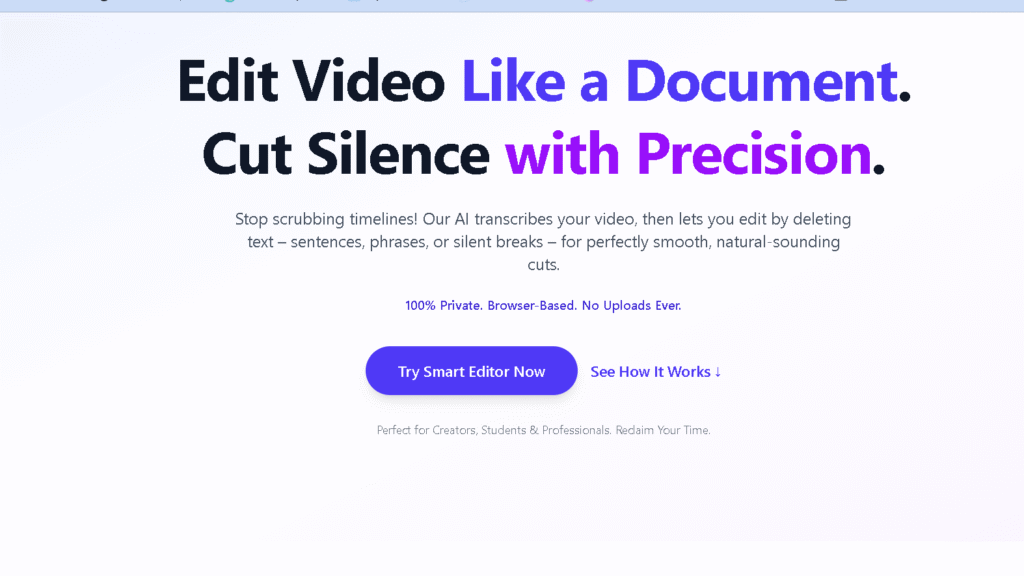
Silence Slicer is my free tool to remove silences and tighten pace in short videos. It can hear silence with accuracy and exports clean clips without re-encoding.
Key Features
I can detect silent segments automatically, and remove them in one click. The silence threshold in the tool is adjustable, so I can control the detection’s sensitiveness.
It supports MP4 and WAV. It makes me feel it is still playing the original audio during the edit process.
Pros and Cons
Silence Slicer is a free program that can be used to batch process multiple files. It is a fairly basic interface compared to paid editors and there are simple cuts to be tweaked manually.
Export options are not very useful – no advanced color grading or motion graphics here.
2) Crayo AI Free Alternative Canva
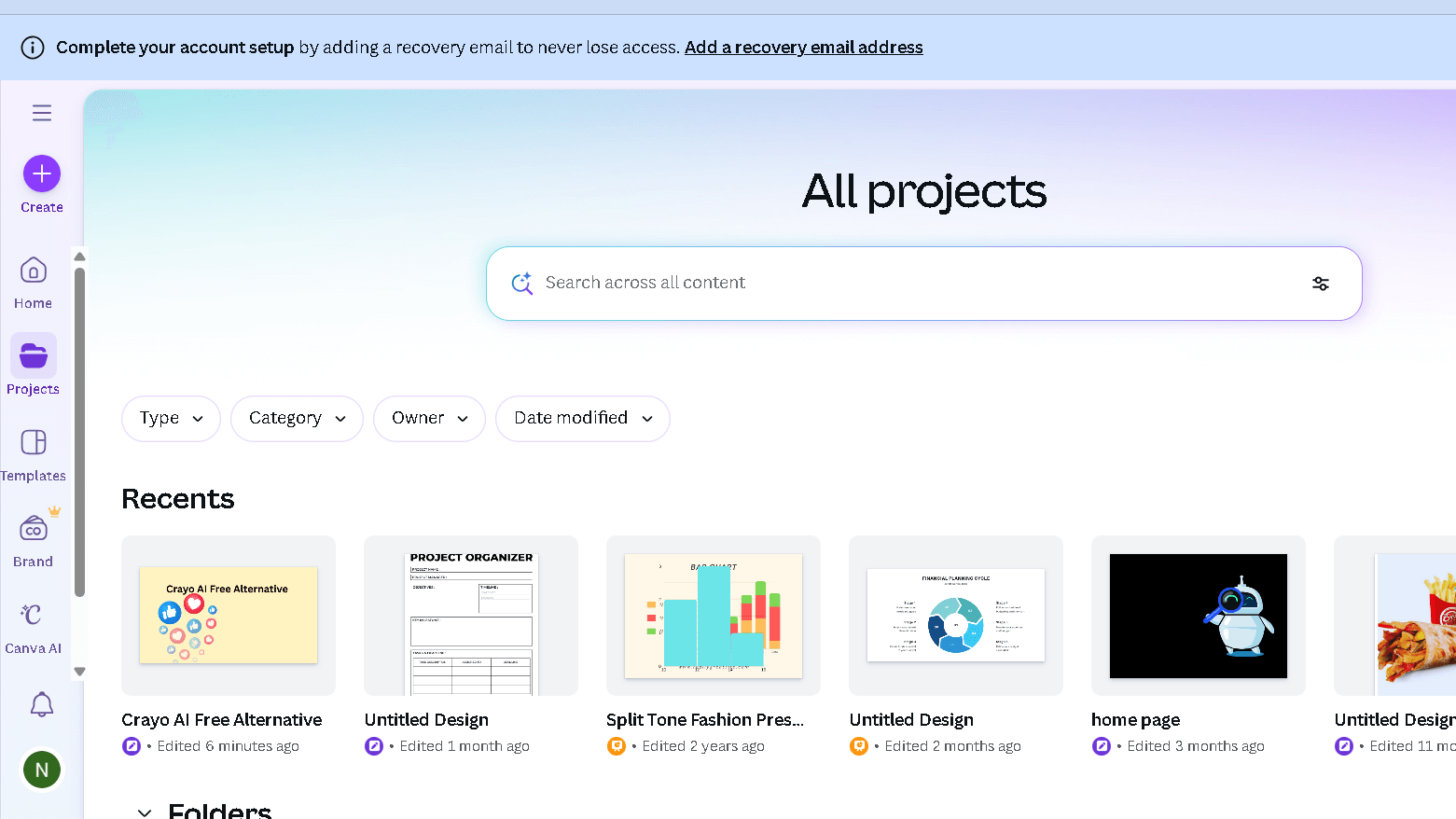
When I want quick design templates, simple image changes or AI image generation without heavy setup, I use Canva. Canva has a lot of templates, drag-and-drop tools, and stock media.
Key Features
Canva offers thousands of social post template templates, presentations, and video thumbnail templates. I can resize designs in one click and export as PNG, JPG, PDF, or MP4.
The app includes an AI text-to-image utility, background remover, and Magic Write for short copy. I use team folders, brand kits, and scheduling tools to keep projects consistent.
Pros and Cons
You receive many free templates and stock assets plus easy collaboration and quick exports. The learning curve is low so I can make polished work quickly.
Premium stock, brand control, and some AI tools require a paid plan. Pro design apps have limited depth of photo retouching and more complex layout control.
3) Synthesia
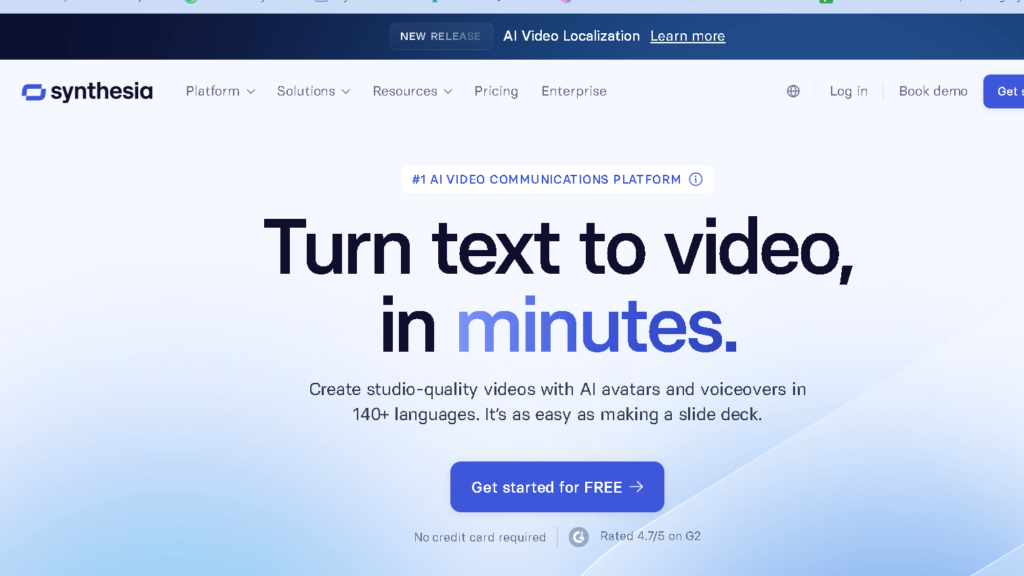
I chose Synthesia because of the high-quality avatar, the wide language support, and the quick text to video pipeline. It is good for delivering clear spoken audio, customizeable avatars, and simple script to video exports.
Key Features
You can draw videos from plain text with realistic AI avatars and many language options. It has avatar lip-sync, background and clothing options, and timed subtitles to caption.
I can upload my own voice, or choose from a built-in voice, and export MP4 files at normal resolutions. It also integrates with some of the workflow tools and enables group collaboration in script edits.
Pros and Cons
Not to be missed are the quality and natural-looking avatars and strong multilingual support. It has a simple interface and usually a quick turnaround.
Free-use has limits, and customized avatars are more likely to cost you. With more traditional video editors, creative control, such as editing multiple shots or whole scene scenes, is limited.
Key Features to Evaluate in a Crayo AI Free Alternative
Focus on three topics of practice – the quality and controls of the AI’s output, the ease of use, and costs and limitations you’ll encounter.
AI Model Quality
Determine the realistic and consistency of the rendered video or edits. Check sample outputs for color accuracy, facial detail, lip-sync, and motion continuity.
Find tools that allow you to choose models or presets (cinematic, social short, news-style) so that you can match the results to your goal. Assess the options for control: fine-grain prompts, scene-by-scene edits, and sliders on parameters such as speed or sharpness.
Does the tool support voice cloning, text to speech with multiple voices, and multilingual captions? Speed is also an important consideration – rendering time can really affect workflow, so check if it uses GPU-backed renders and how long it will take to render a short video.
Watch out for safety filters and watermark policies. Good models have content filters and watermark removal on paid plans.
Also check export codecs and max resolution (1080p minimum, 4K if you need high quality).
User Interface and Experience
I love quick and clear workflows that require a few clicks to produce usable video. The editor must provide a visual timeline, drag-and-drop clips and a live preview with scrub.
Template libraries and auto-edit modes with a 16:9, 9:16, 1:1 aspect ratio would be helpful as well. One-click social exports are nice.
Help and onboarding are important. There are interactive tutorials, examples and prompt suggestions to help you make the most of your time.
Check keyboard shortcuts, autosave, and versioning projects so you don’t miss work. Collaboration features, such as shared projects, comments and access by role, are vital if you work with a team.
It matters also in terms of mobile and web parity. If I switch between desktop and phone, I want the same export options and even rendering.
Test responsiveness on your hardware; some cloud tools offload rendering to ensure local performance is stable.
Pricing Structure
Look at the baseline costs and overage rules, such as subscription levels, pay-as-you-go credits, and hidden fees. Note what each tier includes: send minutes, maximum resolution, watermark removal, and commercial license.
A low-cost monthly plan can be costly if it restricts exports of poor quality. Look for credit systems with transparent credit systems, in which one credit equals a minute or a specific render resolution.
Check whether the credits are rolled over or expire. Watch out for extra charges such as priority rendering, more voices, or team seats.
I always read fine print on commercial use and attribution. Some of these “free” levels do not permit monetization or watermarks.
Finally, calculate price per finished minute at your normal resolution to compare tools fairly.
Considerations When Choosing Free AI Art Tools
Focus on two important practical issues: what the service does with your uploads and prompts, and what rights you get for the images you create. These two factors define what kind of tool is appropriate for personal or business use.
Data Privacy
Check with uploads, prompts, and account information before you proceed. It is important to find out whether the provider stores models or trains models for your content.
If the tool keeps all user inputs for model training, you could use your design to improve the service and include them in future outputs for other users. Aspects to consider include retention time, encryption, access controls.
Verify that the tools are either self-contained with erasure, export, or local processing. Check for third party sharing: some services send data to analytics, cloud vendors or partners, resulting in exposure risk.
Account security matters—use two factor authentication and a separate password for the tool if it stores creative material you enjoy.
Commercial Usage Rights
Read the terms of license carefully so you know if you can sell or use images for commercial purposes. Free tools have limited rights, are required to be attributed, or are used only in delicate industries.
Check if the license is royalty-free, if the service provider claims to have ownership, and if the tool does not allow logos, trademarks or resale. Watch for model or data disclaimers that transfer ownership of copyright to you.
If you plan on monetizing images, get a commercial license or upgrade to one. Keep copies of the license agreement text or screenshots of the version you used – terms may change and you’ll need proof that you have the rights.
Veed io Review: Is This Video Editor the Best? Pros & Cons
Frequently Asked Questions
Here are practical answers about free alternatives to Crayo AI, how they work on different devices, and where to compare them. I focus on Silence Slicer, Canva, and Synthesia since those are my top picks.
What are the top three free alternatives to Crayo AI as of 2026?
Free alternatives I recommend are Silence Slicer, Canva and Synthesia. Both have free versions with tools for short-form video making and AI-aided workflows.
Silence Slicer is for short-term audio/video editing and trimming. Canva provides templates, simple video editing, and basic text to video tools.
Synthesia has free and limited trial features with AI video generating your avatar.
Are there any reliable free AI tools similar to Crayo AI for iOS devices?
Yes. Canva has a well-supported iOS app with video templates and simple AI features.
Silence Slicer is often available from websites that are in iOS browsers and some specialized apps. Synthesia’s web service works with iPad Safari, but may also have limitations on mobile.
I highly recommend that you test all the apps on your device for performance and export options.
Can I find a high-quality AI platform that is free and compares to Crayo AI in functionality?
You can find capable free options, but none match every paid Crayo AI feature fully. Canva and Silence Slicer cover most editing and template needs, while Synthesia adds avatar-based video creation.
Expect limits on exports, watermarking, or caps on minutes per month in free tiers. For advanced editing or large-scale automated posting, a paid plan will still be necessary.
What are the current best free AI solutions with accuracy comparable to Crayo AI?
I find Synthesia and Canva to be the closest in output accuracy for content automation and reliable text-to-video conversion. Synthesia’s AI avatars deliver consistently good lip-sync and quality voice for scripted content.
Canva auto-layout and captioning are pretty accurate for many social posts. Silence Slicer provides quicker and easy to edit content than AI content generation.
Accuracy varies from task to task—select the tool that works best with what you want.
How can I access AI services similar to Crayo AI without incurring costs?
Start with the free tiers or trials of Silence Slicer, Canva, and Synthesia. Rather, use web-based versions to avoid app-store restrictions.
Mix tools: write scripts in Canva, make avatars in Synthesia and edit clips in Silence Slicer. Be alert for use caps, watermarks, and export limits.
I recommend testing workflows on sample projects prior to an investment in a paid plan.


